QUEUE Cloud 5.0
Highlights
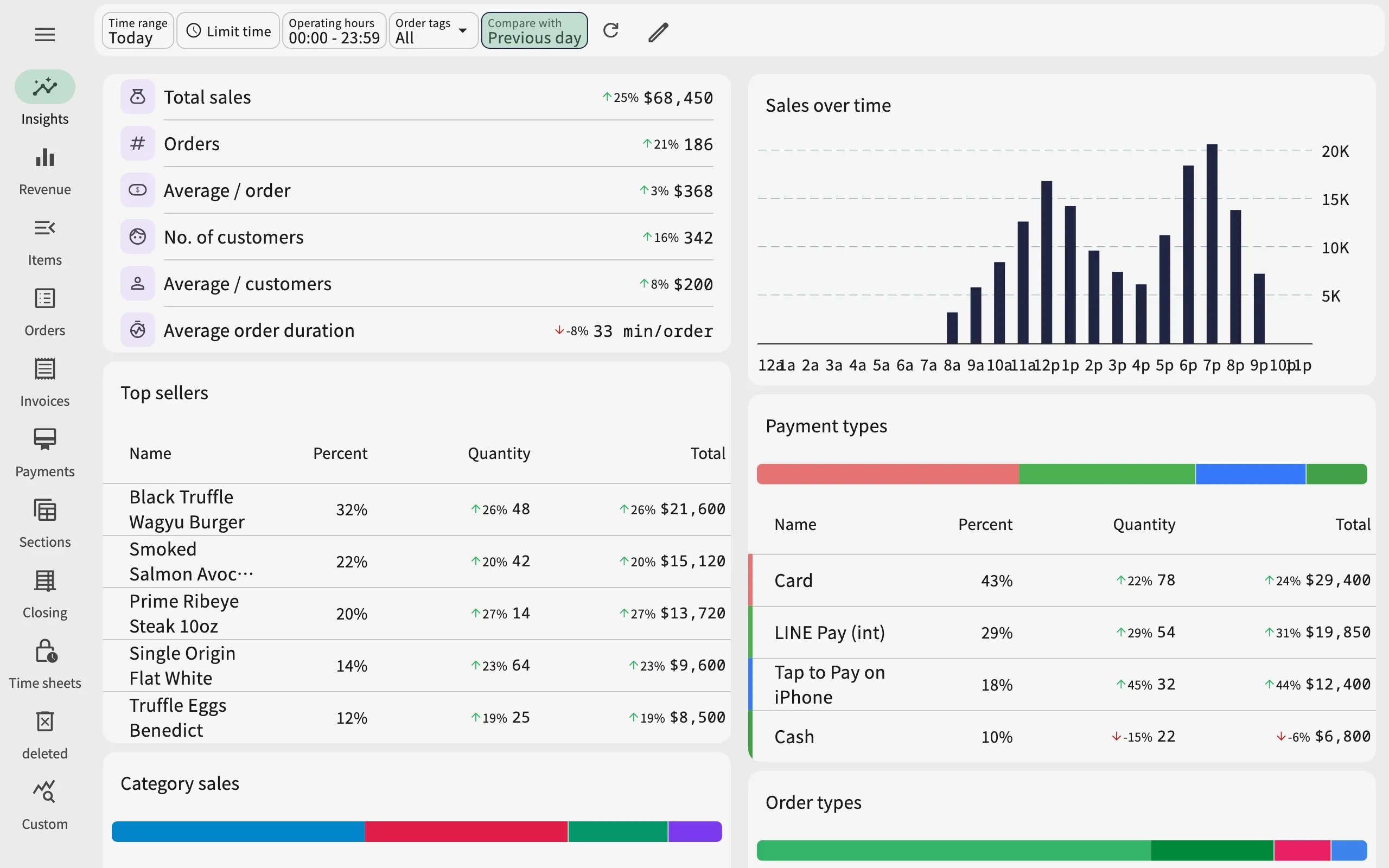
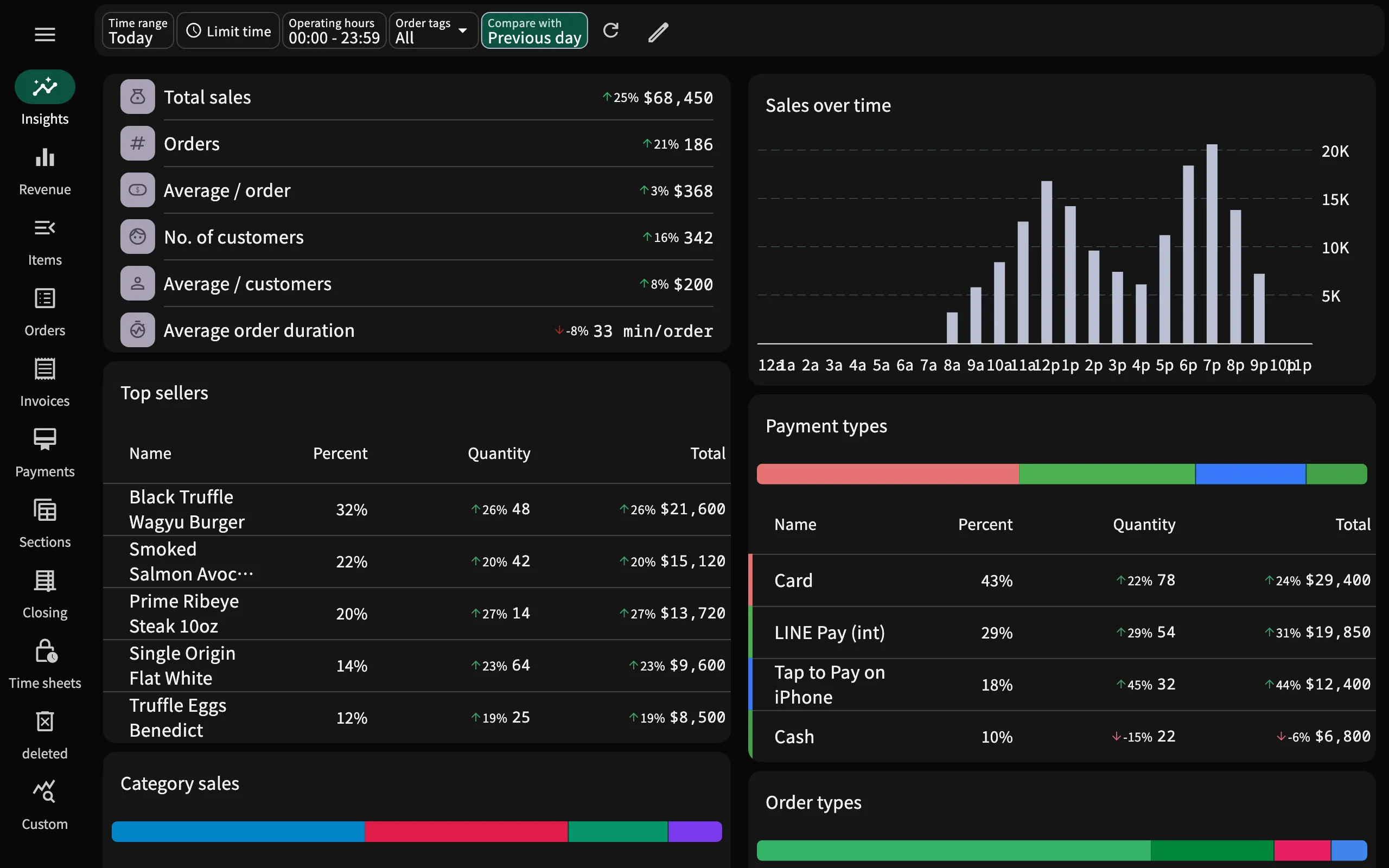
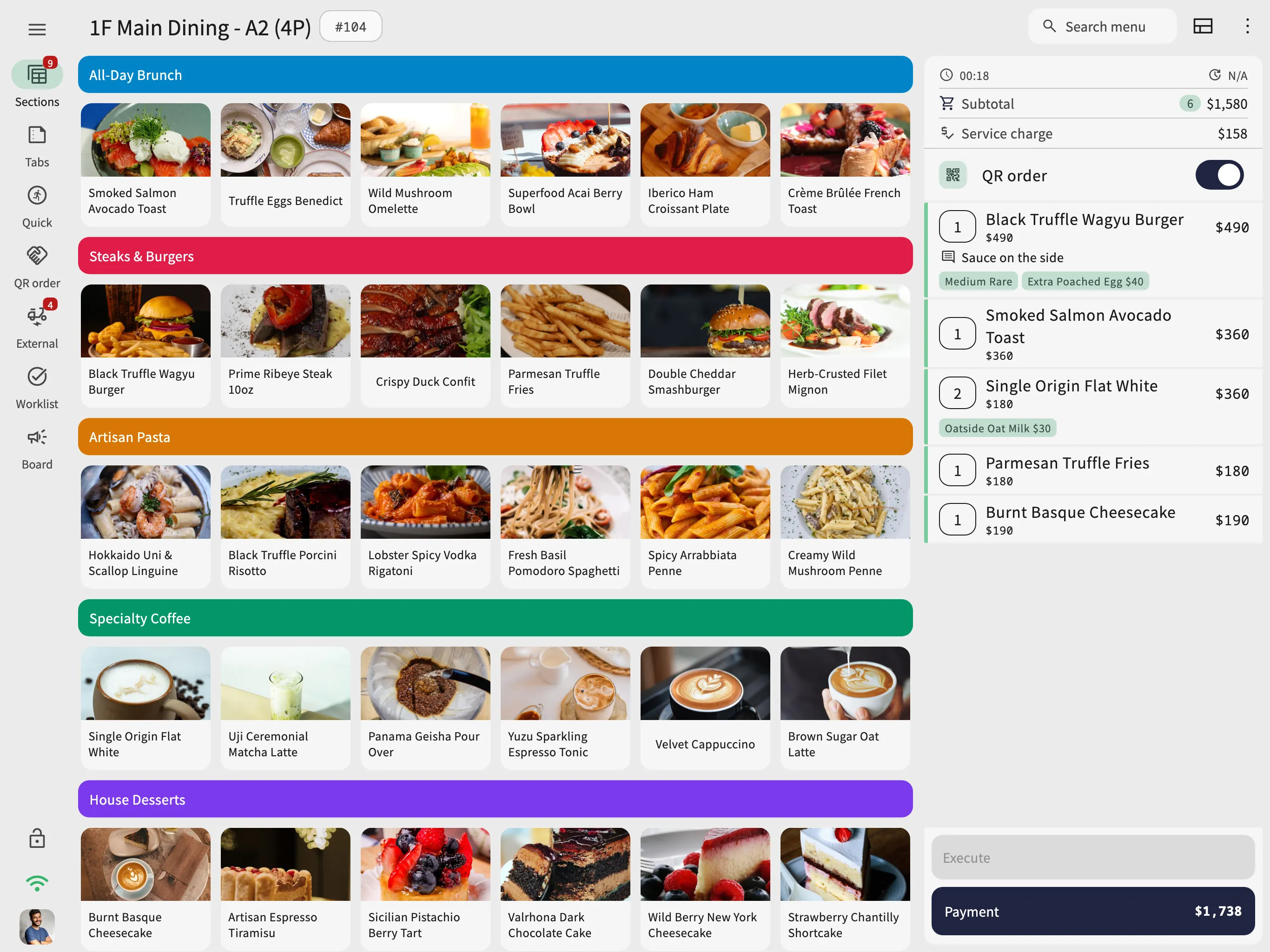
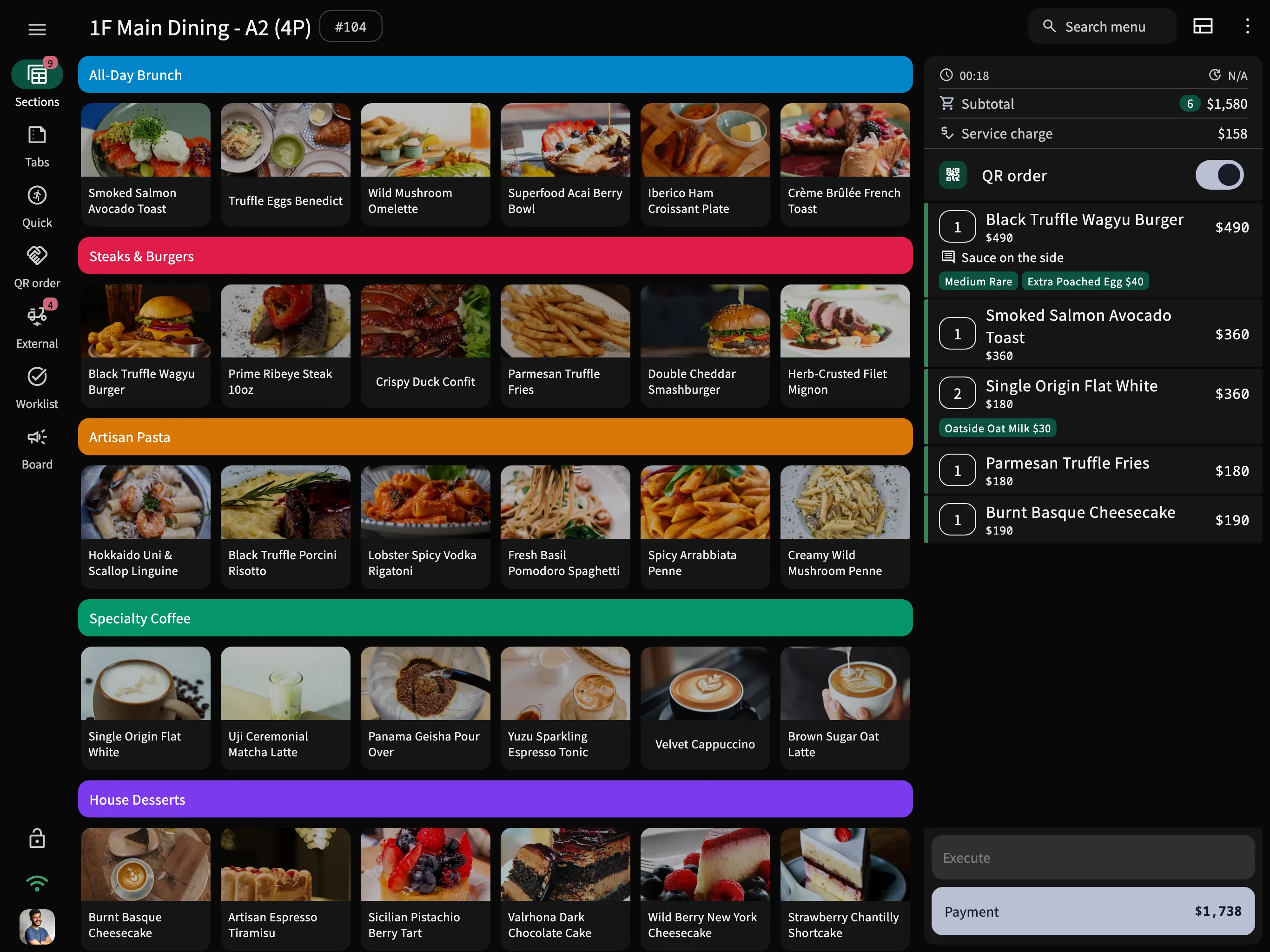
QUEUE Cloud 5.0 is built around one goal: helping your team move faster and make fewer mistakes during your busiest hours. This release introduces a cleaner, easier-to-read design across the entire POS, launches our new Order Calling Board for pickup counters and wall TVs, and sets the stage for an upcoming QR & Online Self-Ordering redesign.
A Cleaner, Faster Design Across Every Screen
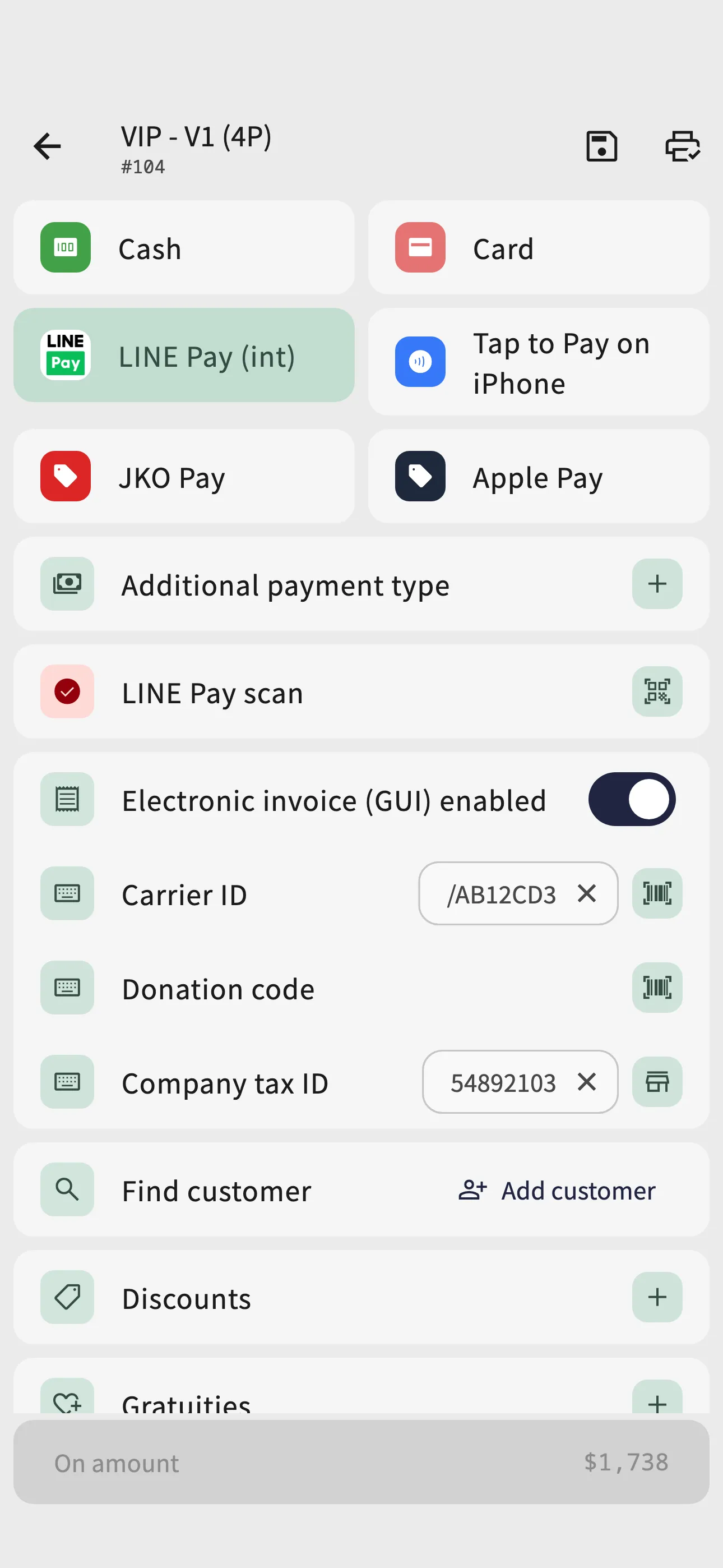
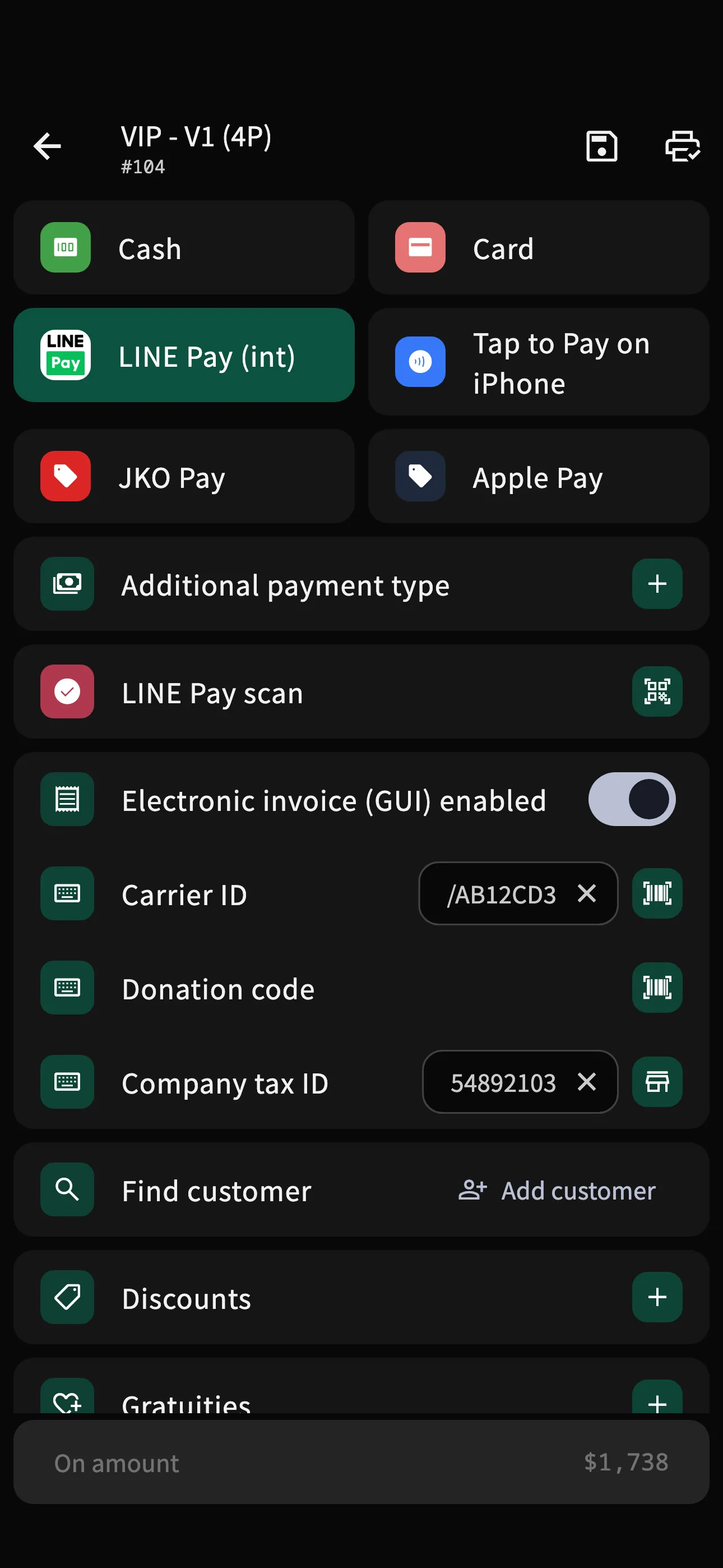
We have refreshed every core workflow—from Ordering, Floor Plans, and Payments to Kitchen Display (KDS), Reporting, and Settings—so staff can find what they need right away with less visual clutter.
-
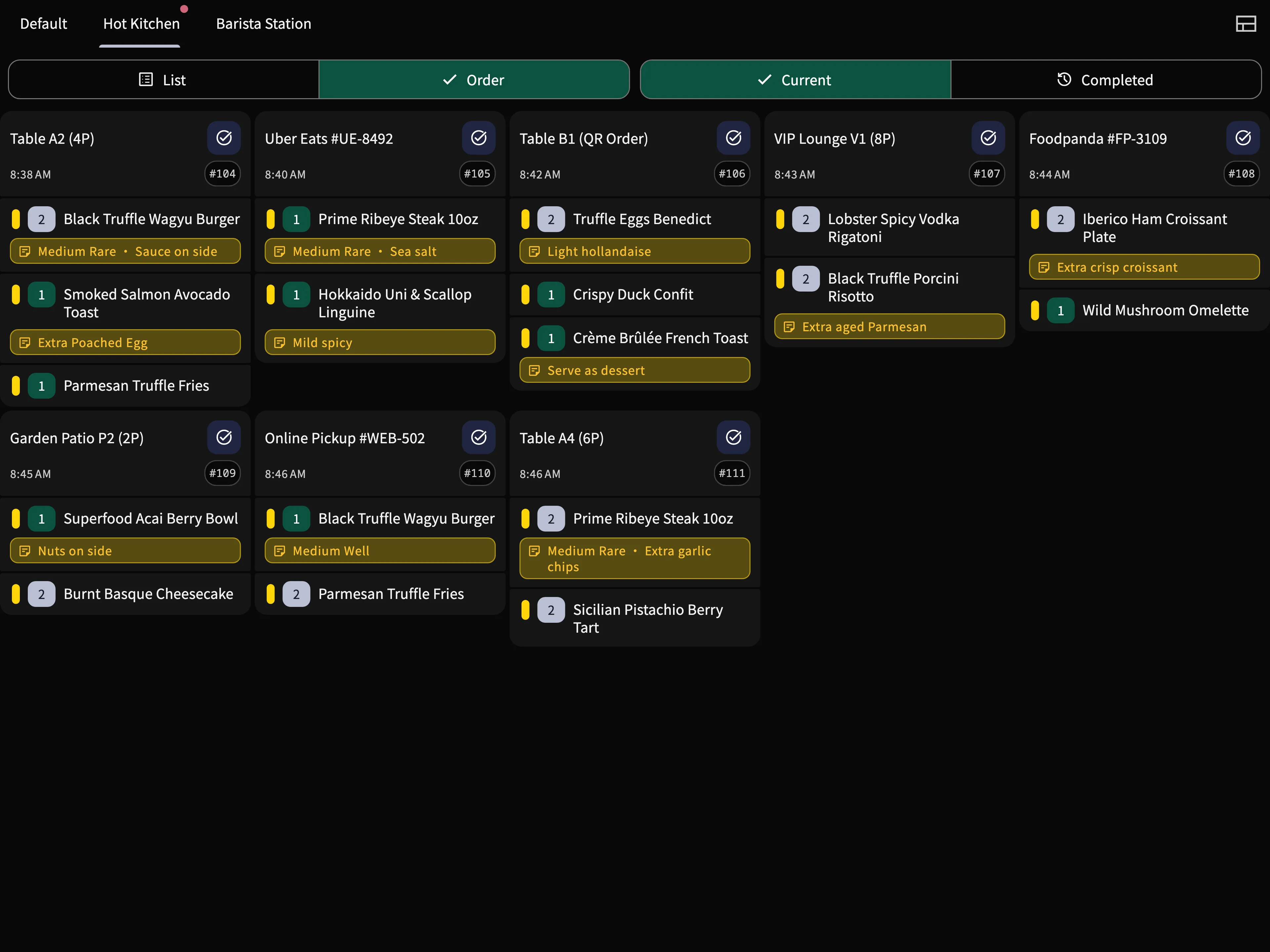
Easier on the eyes, day or night: Clean card layouts, clearer spacing, and balanced contrast make screens effortless to scan whether you run a sunlit daytime café or a dim evening bar—in both Light and Dark mode.
-
Spot modifiers and combos at a glance: Drink customizations, cooking preferences, and combo selections now appear as tidy inline tags directly inside menu grids and cart items. Buttons stay uniform in height, making it much faster to double-check complex orders before sending them to the kitchen.
-
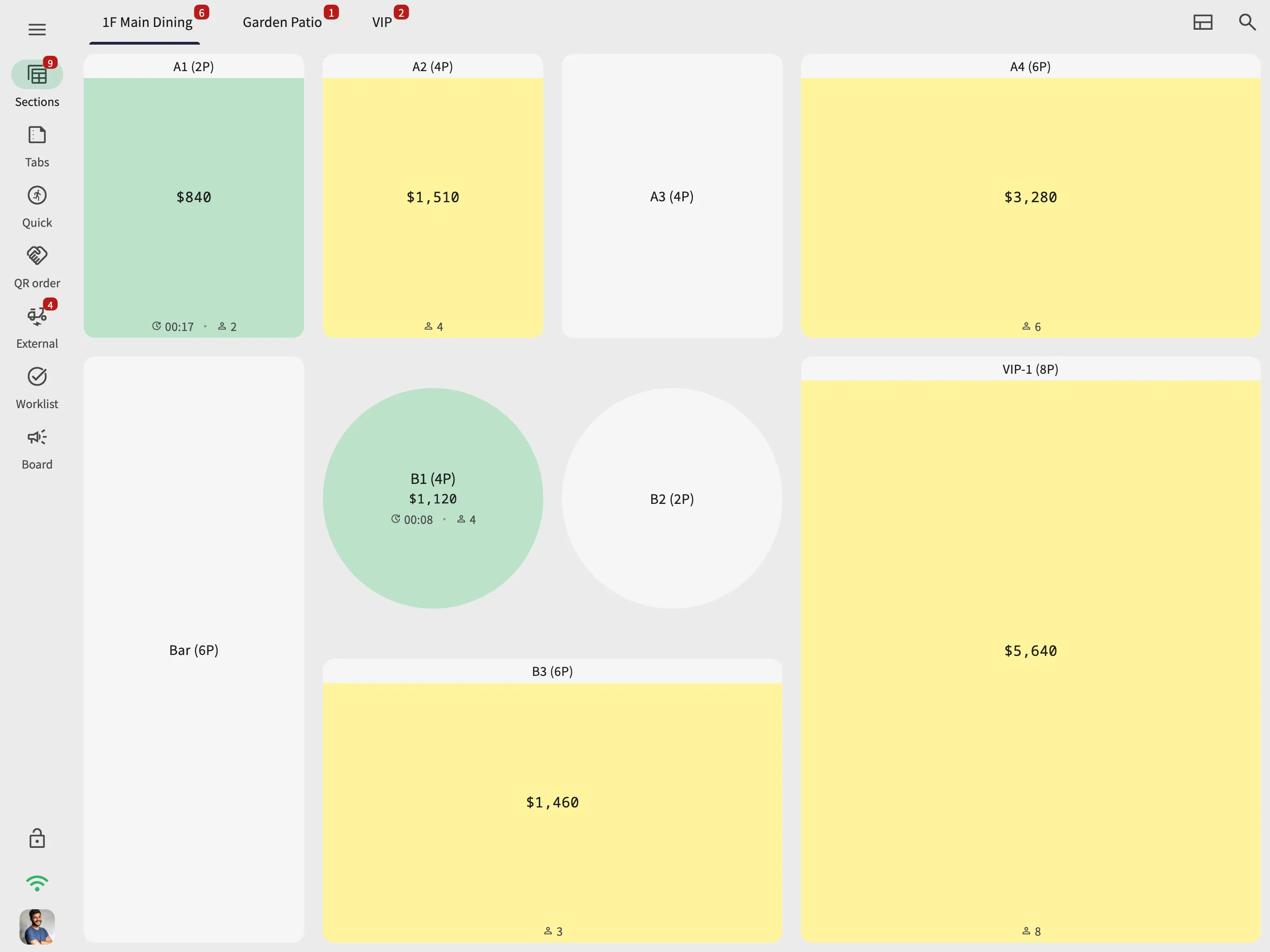
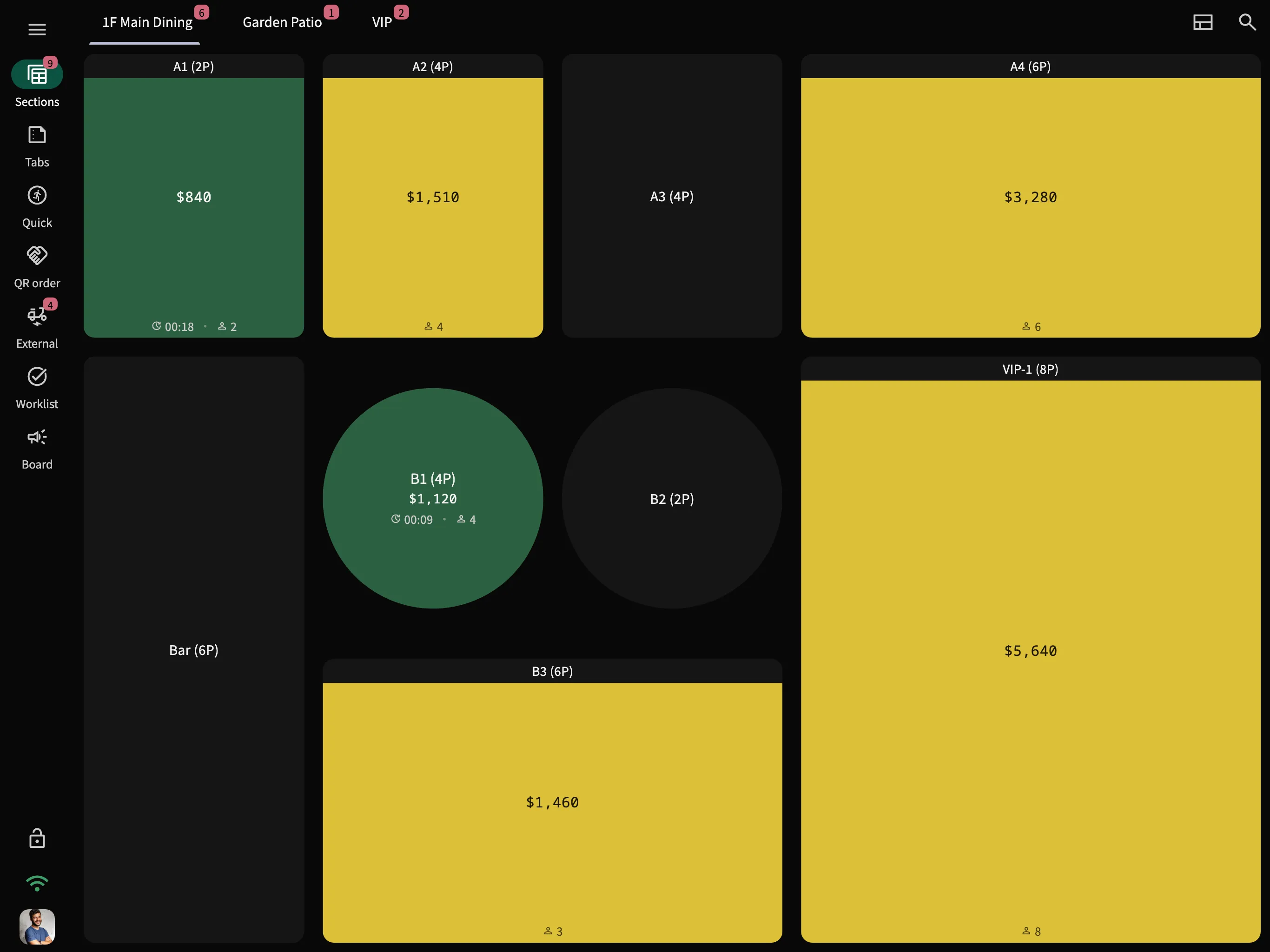
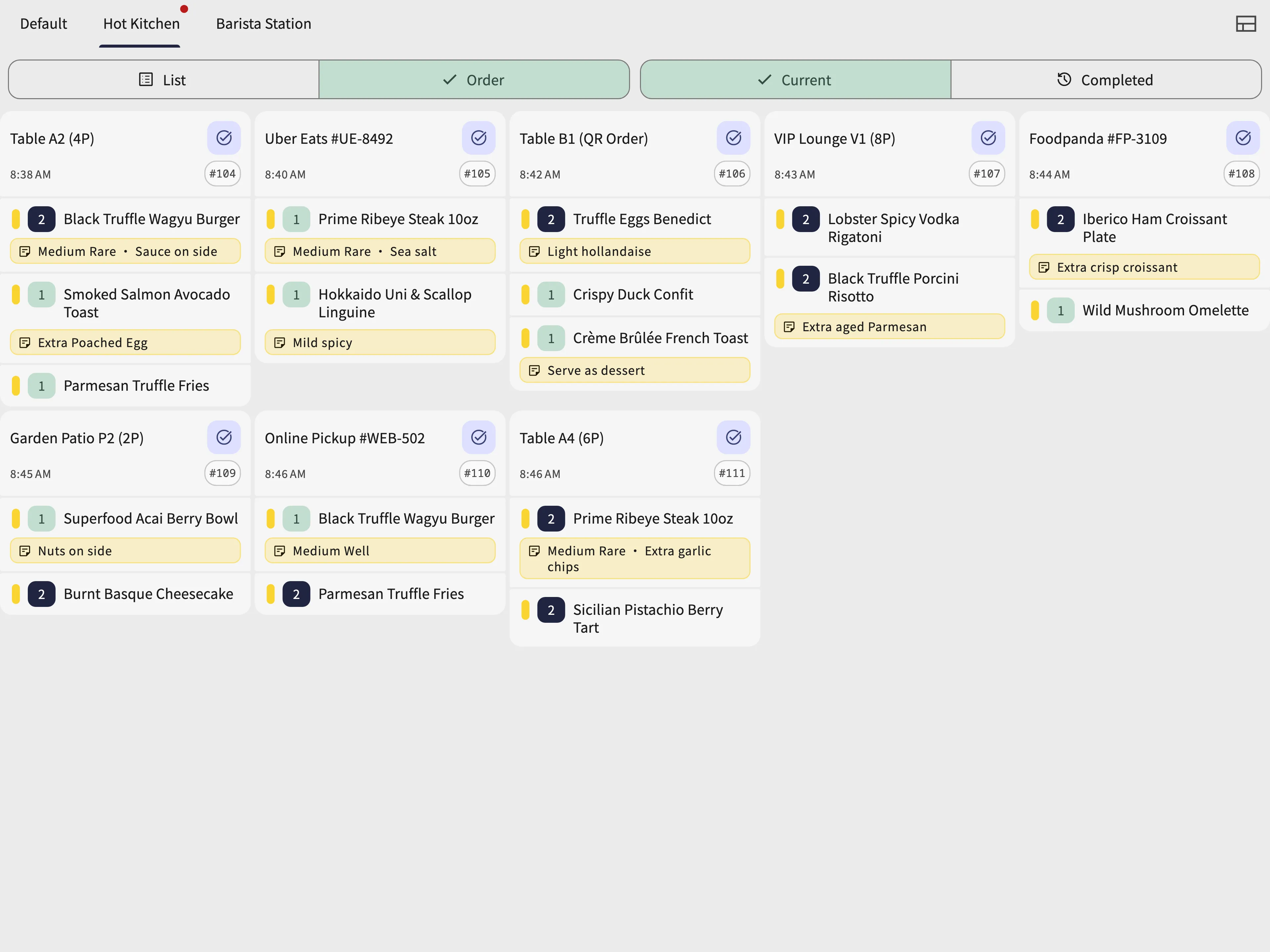
Optimized order section colors (with a Classic option): We refined the status colors on order sections for clearer contrast and faster readability at a glance across both Light and Dark mode. Prefer the previous color palette? You can toggle Classic colors anytime directly from the menu button.
-
Tables that span multiple columns & rows: Floor plans are now much more faithful to your actual dining room. Long communal tables, bar counters, and large VIP booths can span across multiple columns and rows on the grid so staff can recognize every zone immediately.
-
Clearer Kitchen Display (KDS) tickets: Kitchen and bar station cards now highlight item quantities, special preparation notes, order sources (dine-in, QR, Uber Eats, Foodpanda), and wait times more distinctly. You can also choose how completed tickets advance on screen—including keeping cards steady under your finger while tapping off several items in a row.
-
Native Windows Desktop support: Alongside iPad, iPhone, Android, and Web, QUEUE 5.0 now runs natively on Windows PCs—ideal for back-office menu editing, wide-screen live reporting, or counter terminals.
New: Order Calling Board for TVs & Pickup Counters
Built for coffee shops, drink bars, quick-service restaurants, food courts, and busy takeout counters, the new Calling Board lets waiting guests see their order status from across the room—keeping your pickup counter calm and organized.
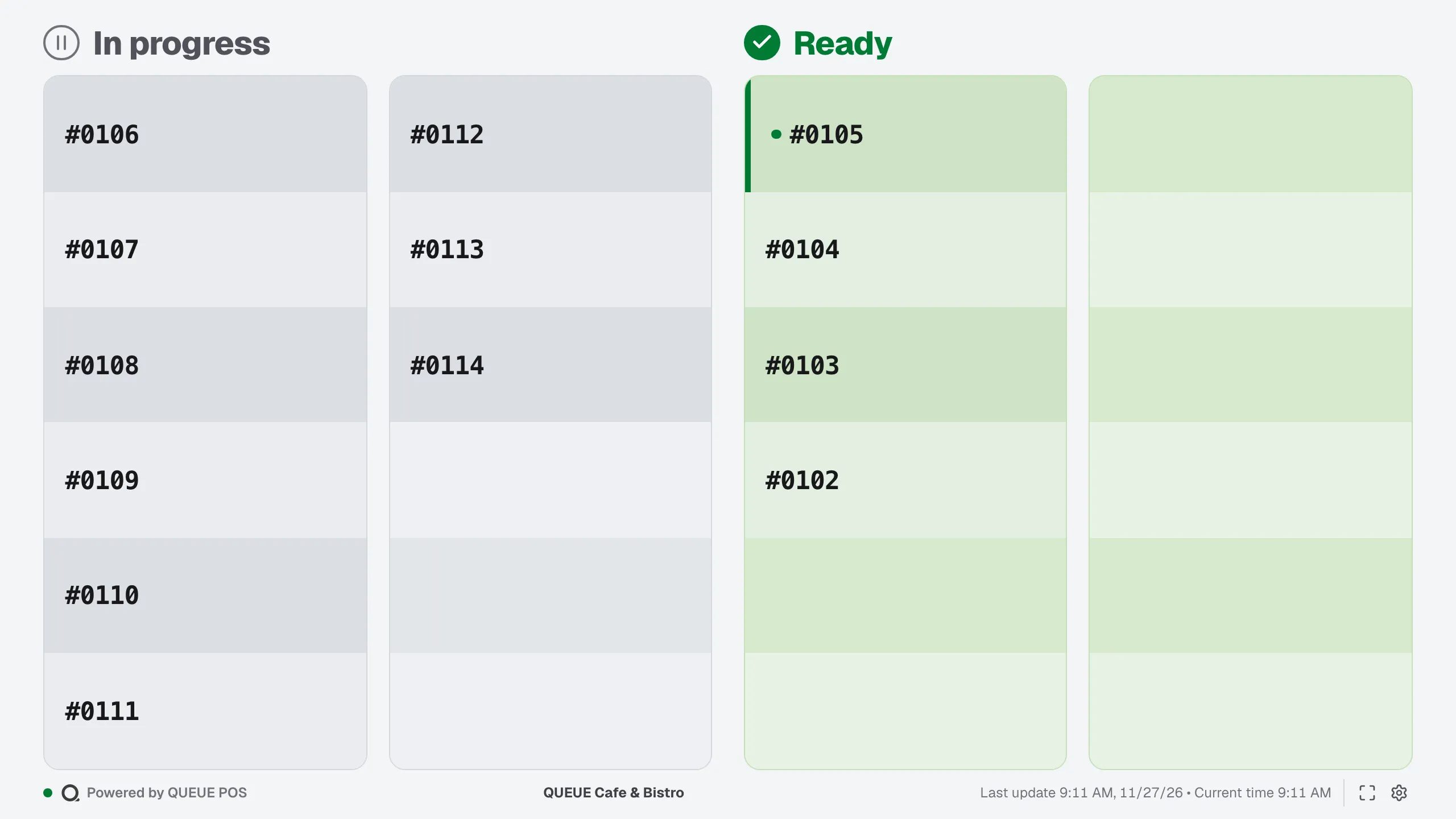
- Clear “Preparing” & “Ready” columns: Large, high-contrast order numbers show guests which orders are Preparing and which are Ready for Pickup, automatically matching your store’s default language (English or Traditional Chinese).
- Pair any Smart TV in seconds via QR code: Open cb.qpos.me in the browser on any Smart TV, Android TV box, or external display monitor, then scan the on-screen QR code using your POS tablet. There is no need to type passwords with a TV remote, and the screen reconnects automatically after power cycles.
- Synced live with Kitchen Worklists & POS: Orders appear under Preparing automatically as soon as they are sent to the kitchen. When staff mark an order ready—either from a KDS worklist or the in-app Calling Board control screen—the number moves to Ready with a visual highlight, and clears automatically once picked up or expired.
Coming Soon: Refreshed QR & Online Self-Ordering
We are putting the finishing touches on a major visual and usability upgrade for guest QR Table Ordering and Online Pickup, rolling out soon:
- Faster, clearer guest ordering flow: Cleaner category navigation, easier-to-read product cards and option pickers, a streamlined checkout screen that places preparation notes right alongside the order summary, and clearer payment status indicators in My Orders.
- Six curated store themes: Match your mobile menu to your venue’s atmosphere directly from POS Settings—choose from Warm Café, Clean Mono, Fresh Matcha, Midnight Gold, Ocean Blue, or Sakura Pink, set Light, Dark, or System mode, and preview your storefront live before publishing.
Other Improvements
- Printer Status Overview: Check the live status of all connected receipt and kitchen printers at a glance—instantly see whether a printer is online, unreachable, out of paper, has its cover open, or encountered a cutter error, and retry failed print jobs from one screen.
- Store & Order Activity Log: A new chronological Activities log gives managers full visibility into both store-wide events and individual order histories—showing who added or modified items, fired kitchen tickets, moved or split tables, voided orders, or updated store settings.
- Track Staff Login & Logout: Enable Track staff log in/out to record every staff PIN login and logout event directly inside the Activity Log for clearer shift accountability on shared terminals.
- Faster Reporting & Expanded Filtering: Reports now load significantly faster across high-volume stores and wider date ranges, paired with richer filter operators, segments, and sorting controls to drill into the exact numbers you need.
- Show & Restore Deleted Settings Items: Accidentally deleted a configuration item? Toggle Show deleted inside Settings to view removed items and Restore them in a single tap instead of rebuilding them from scratch.
- Mobile Cart Layout Option (Side Cart vs. Bottom Cart): On phones and handheld devices, staff can now choose between the classic Bottom cart sheet and the new Side cart view under Device Options to fit how they take tableside orders fastest.
- Order Section Order Overview: Tap an order section’s name directly from the sections screen to quickly view all orders for that section.